The posts are extensions of an article we have in storage. (with or without stock). Its objective is to expand the commercial reach of the article. For example: SKU 1 (registered in the warehouse and on the platform) can receive orders that will be automatically dispatched if they meet the necessary requirements: active automatic orders, paid order, available stock, and synchronized listings.
What happens if we don't add publications to an article?
If the SKU has a listing (created by the client or automatically generated by e-commerce), that publication cannot be shipped. Even if we have stock in SKU 1, SKU 1.1 (the one from the post) it will not have stock in the system.
How to prevent this from happening?
The posts are generated from the e-commerce, so they appear with variable frequency. The client can also manually create posts of existing items.
To avoid pausing operations despite the generation of posts:
Remove posts generated from e-commerce. The posts usually have differences from the main article such as:
Different SKU
Different description
Different or blurry image
Assign inventory to each listing to ship the product (not recommended, as some customers have more than 10 listings per item).
Add the corresponding posts for each item to smoothly dispatch e-commerce orders (most recommended option and with full functionality on the fulfillment platform).
Case Study: Orders Without Attached Publications
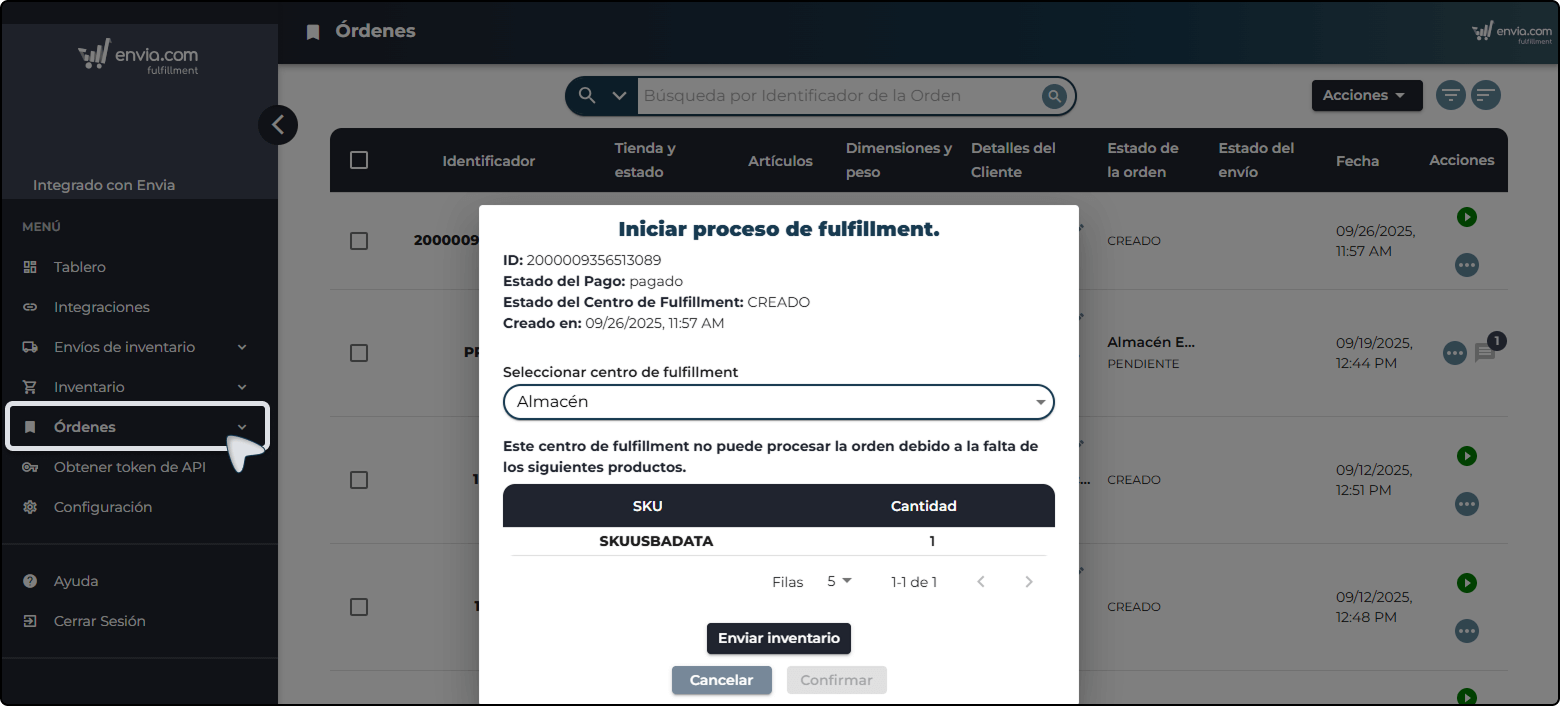
1. When trying to process the order, it's not possible because the option is not enabled by out of stock in the inventory.
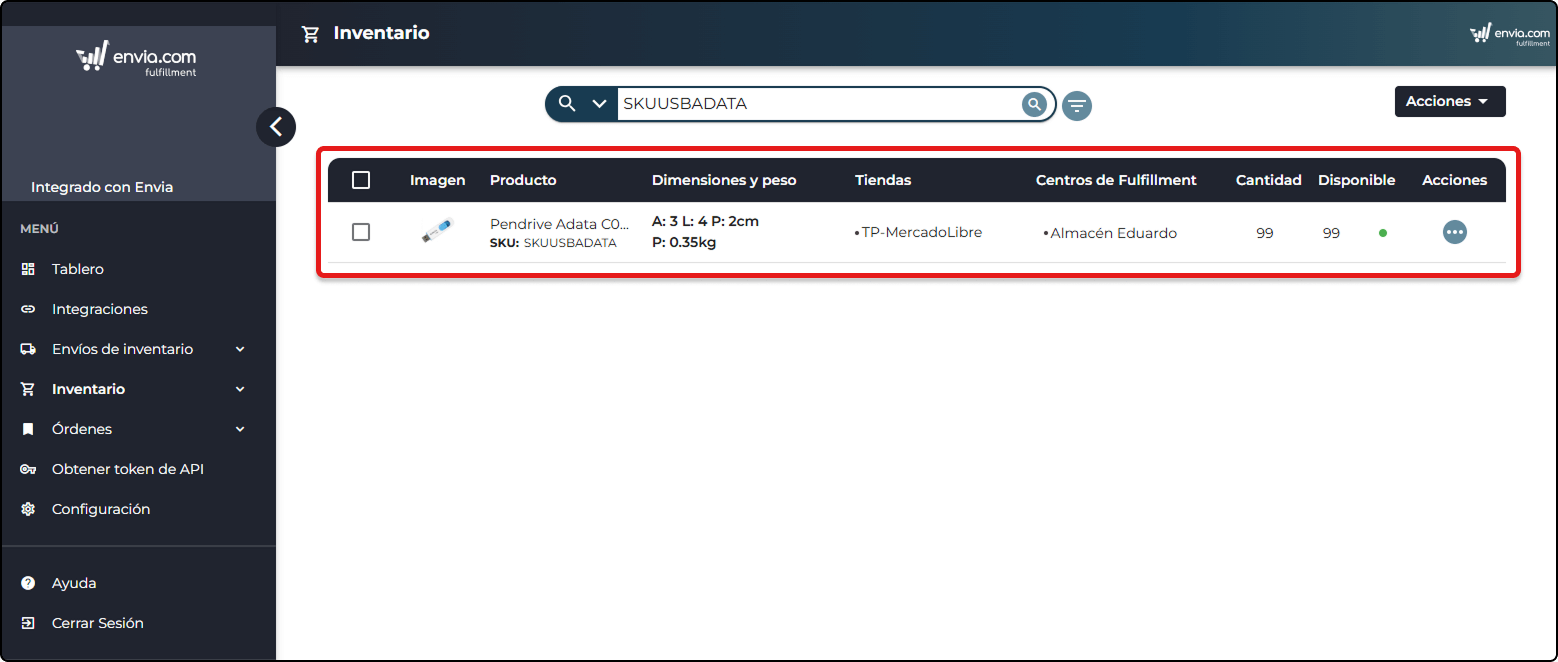
2. The item is in stock at All inventory, but it's still impossible to process the order.
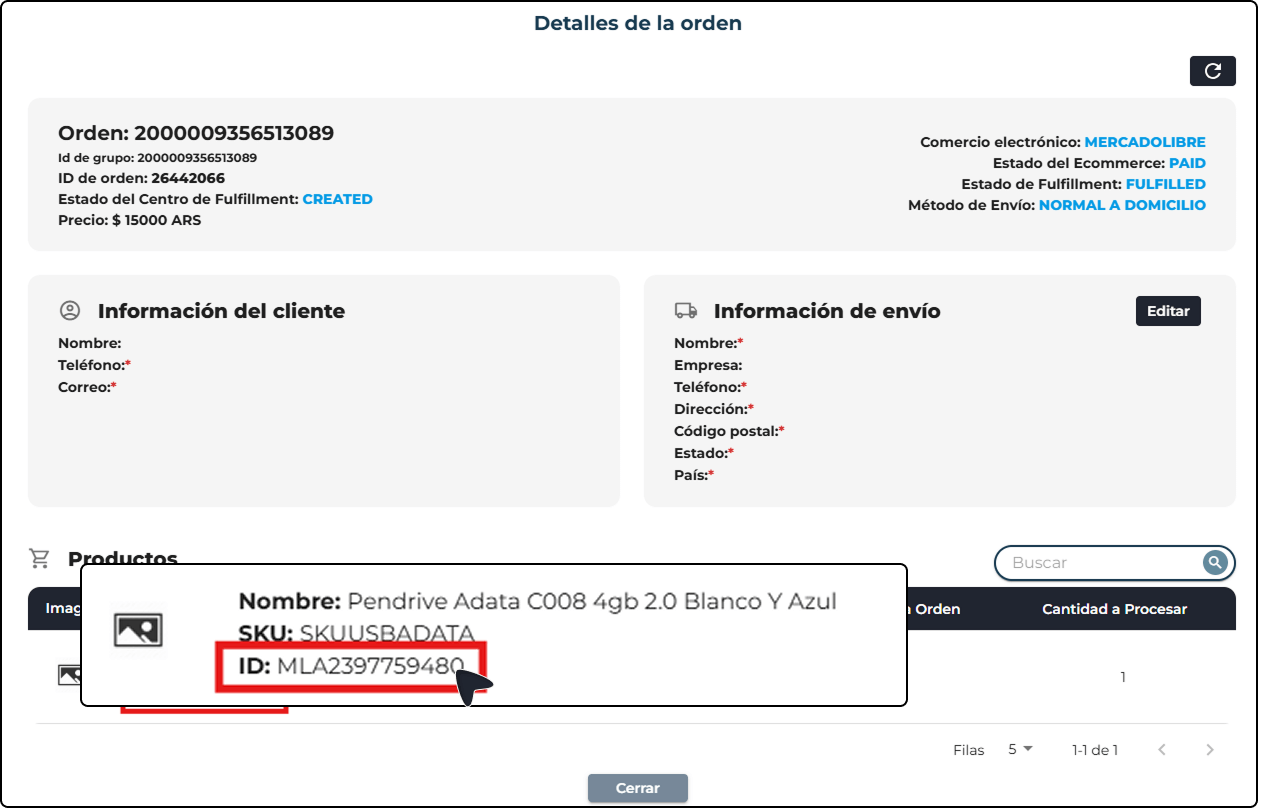
3. Upon reviewing the order details, we will see that the product to be shipped is the same SKU but its ID is different.
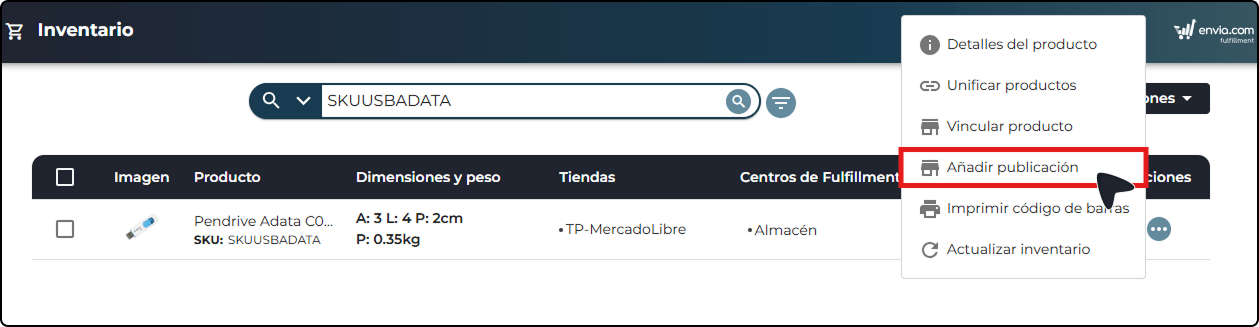
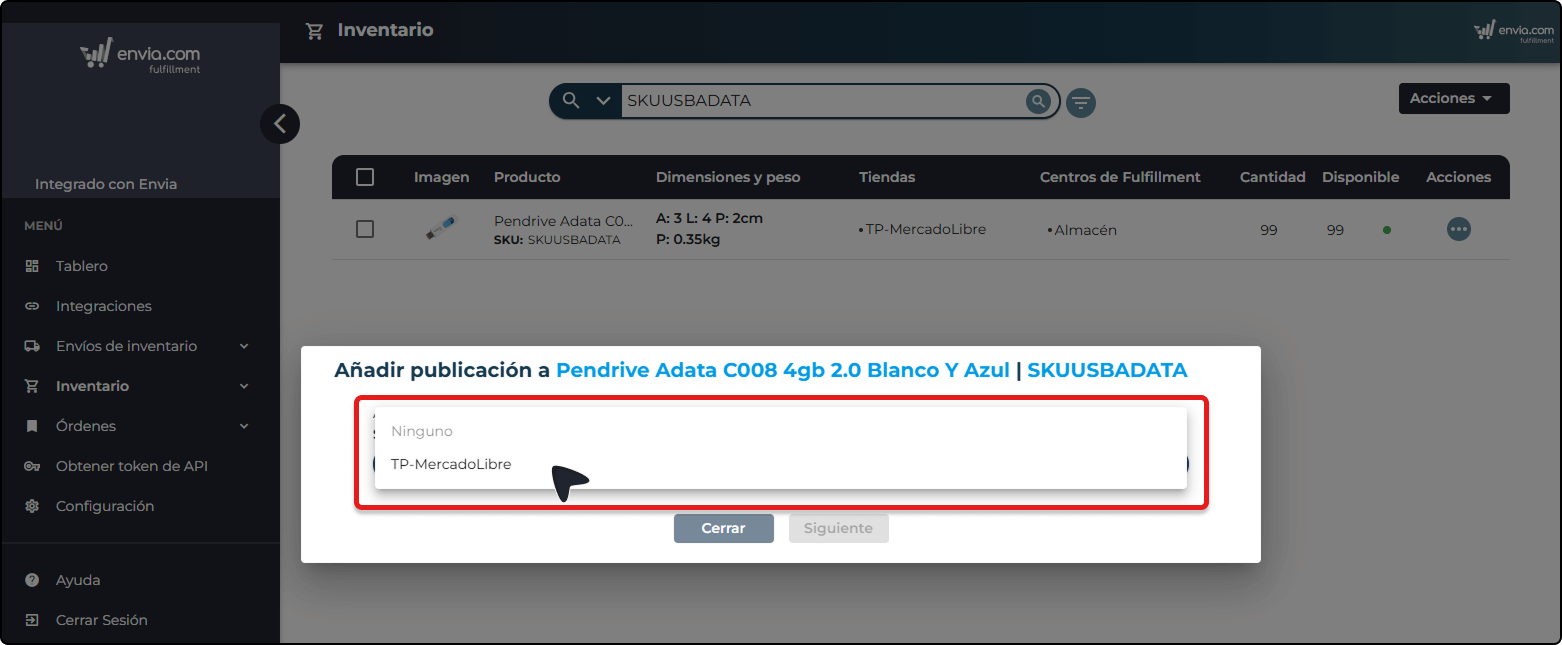
4. Search for the item again in the inventory and press the 3 dots next to the item. The option will be enabled Add Post. At this moment, we will begin the process to attach posts to the main article.
5. Select the store/e-commerce where the order originated.
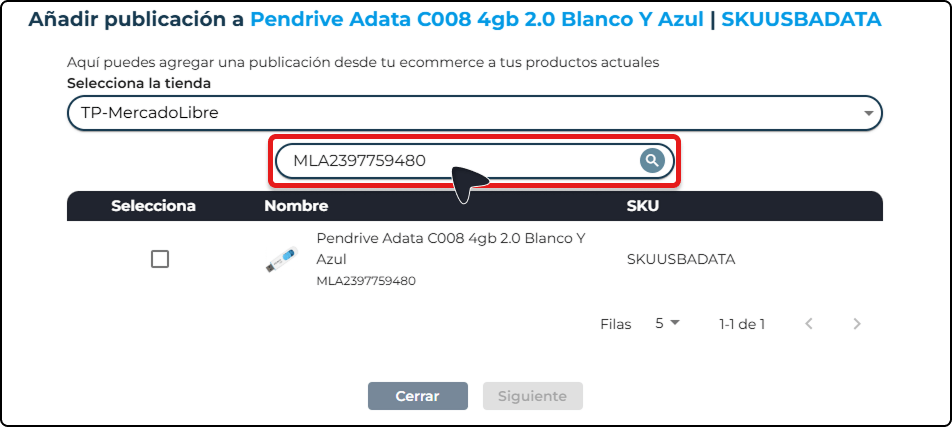
6. In the search engine, add the item ID(the one we observe in step 3).
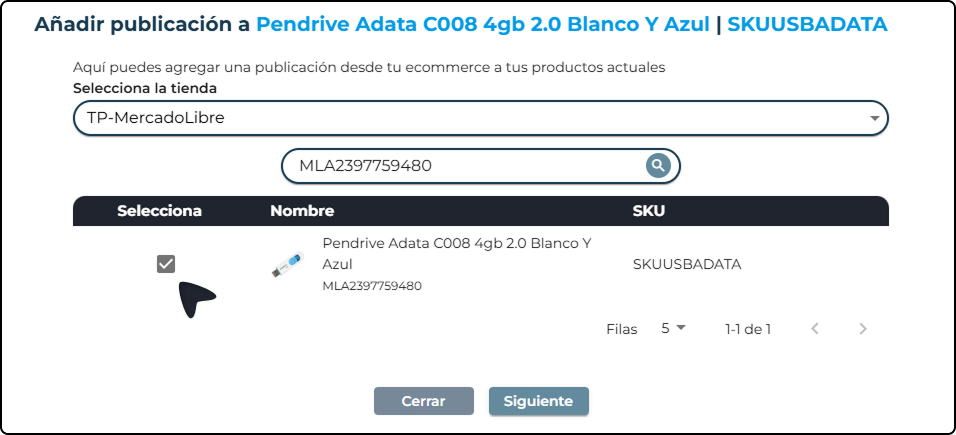
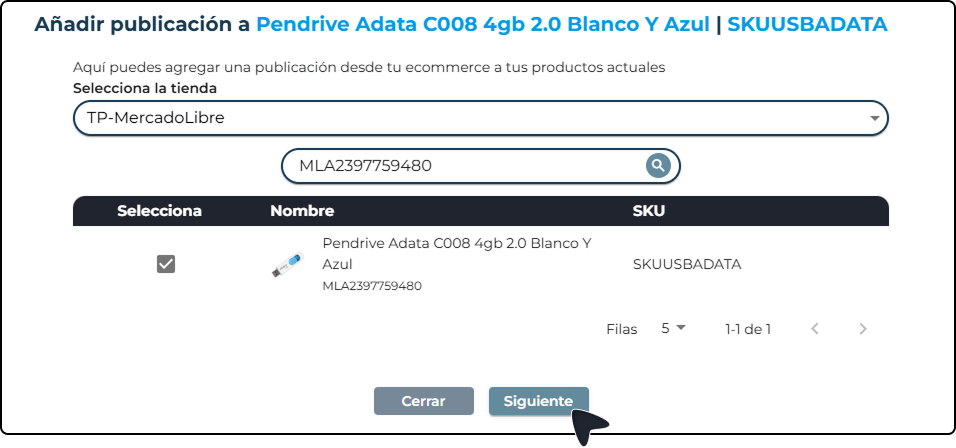
7. Select the post or posts(in case there are more publications related to that article) y press next. Then click on save.
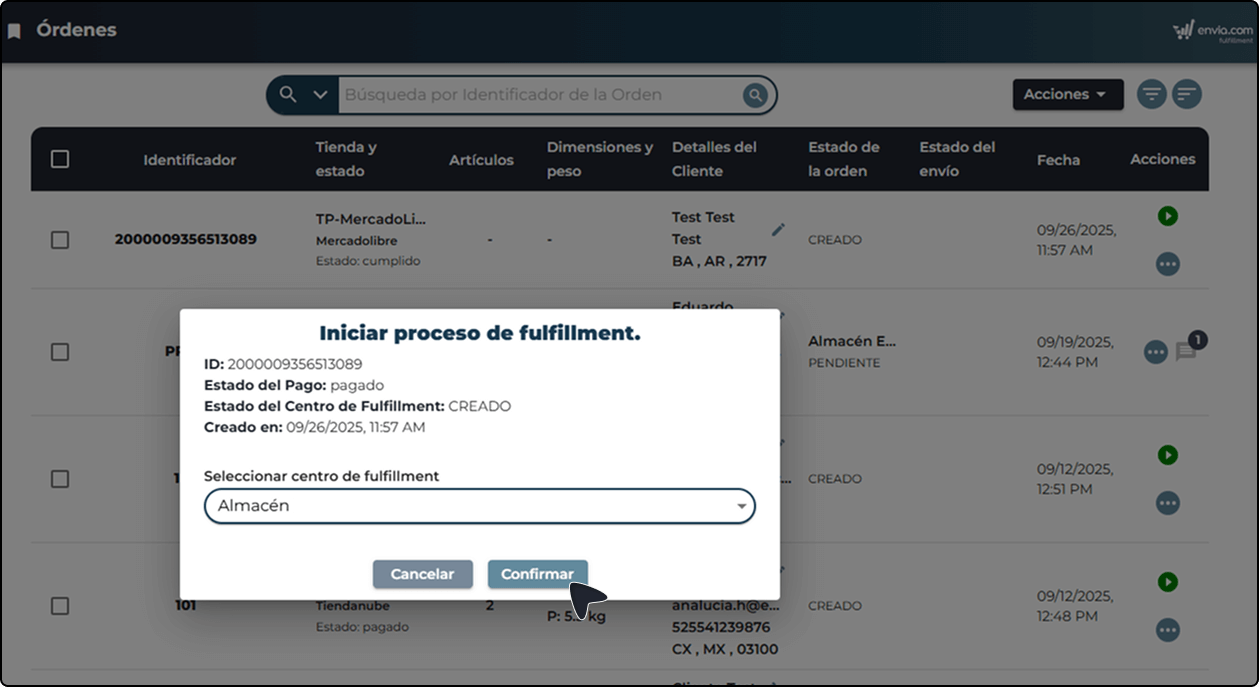
8. Once this process is complete, the publication(s) will be added to the main article. Return to the order that could not be processed and try again. Start the order process.
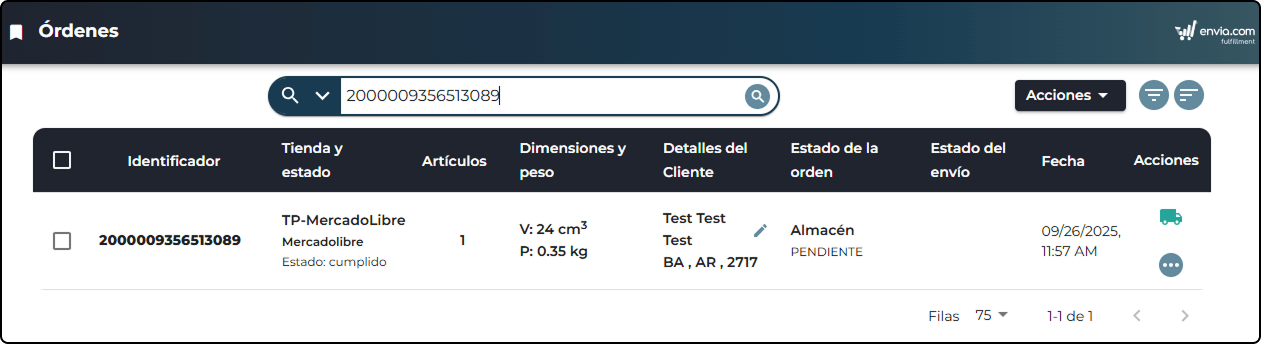
9. Upon confirming the process, the order will begin to be dispatched from the corresponding fulfillment center. With these publications added, all purchases based on that publication will be linked to the warehouse item and can be dispatched without issues, avoiding operational pauses.
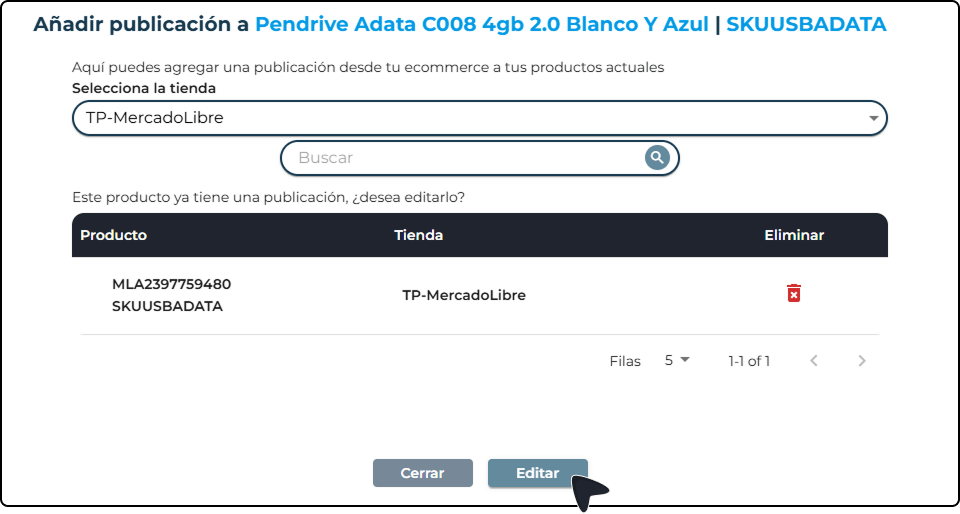
Note: If an image like the following appears when selecting a store to add a publication, just press Edit to enable the following steps.



Did you find this resource useful?