

/ First steps
Multi-client: manage multiple companies from a single account
With Multi-client, you can access one or multiple companies from the same user in Envia Fulfillment, without needing to log out or have separate accounts. You can have own companies (the ones you create and manage) y companies as a guest (companies of other users who gave you access with specific permissions).
Everything you see on the platform: side menu, stores, inventory, orders, billing, and settings, always corresponds to the active company At that moment.
What is an active company?
When you log in, Fulfillment automatically loads a company as your working context. That active company defines:
- What options appear in the side menu (based on your permissions at that company).
- What stores, inventory, orders, and settings can you view and edit?.
- In which company are your actions registered?.
If you switch companies, the platform updates permissions and the menu immediately. If the section you were in is not available in the new company, Fulfillment will automatically take you to the first allowed section.
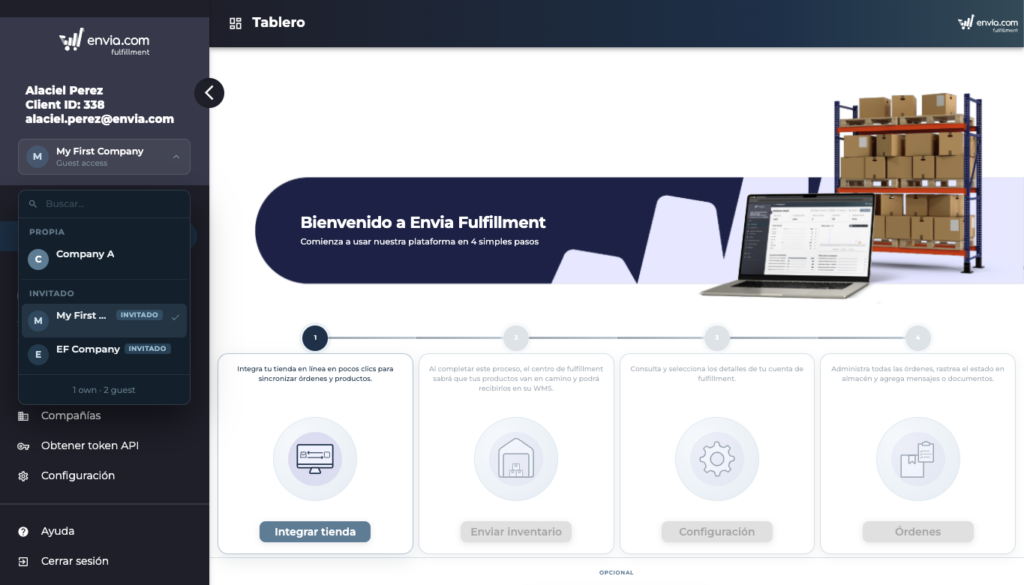
Each company's data is independent. Inventory, orders, shops, and billing do not mix between companies. Always check which company is active before operating.
Access Types
| Type | Tag in the app | What can you do? |
|---|---|---|
| Own | Own | Company created by you. You can edit it, manage its staff and, depending on your role, delete it. |
| Guest | Guest / Guest Access | Company of another user who gave you access. You can only view and operate according to the permissions assigned to you; you cannot edit or delete it. |
Visual indicator in the selector
- Own companies: tone blue.
- Guest Companies: Tone orange/amber.
Switching companies
- On the left sidebar, below your name and email, locate the button with the name of the active company and a down arrow.
- Click to open the listing. The companies are grouped by Own e Guests.
- (Optional) Use the field Search... to filter by name.
- Select the company you need. The active company is marked with a check (✓).
- The platform reloads context: permissions, menus, and data are updated automatically.
If the menu is collapsed (only showing icons), expand the sidebar to see the full selector.
Manage companies
From here you can see all companies linked to your account. You can:
- Use the search bar to filter by name or ID.
- Use the filters Own (blue) and Guest (orange) to show only one type.
- View on each card: name, initials, type label, and, for guest companies, the owner's name.
- Click on a card to open its detail.
Start your own company
- In Companies, click on Add company.
- Enter the name of the new company.
- Click Save.
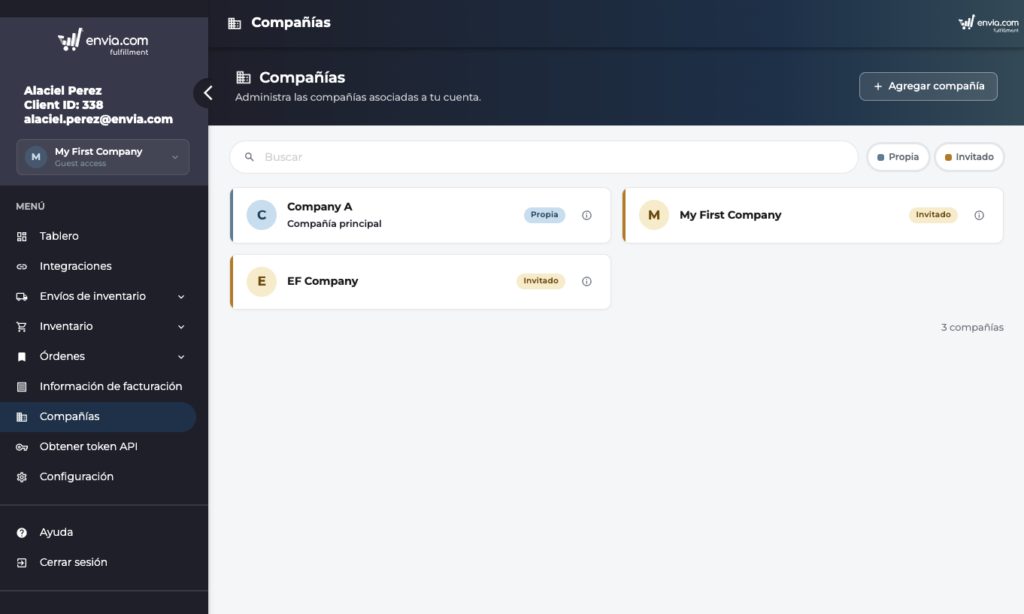
The company will immediately appear in your list and in the side selector.
The name cannot be empty.
Edit my own company
These options are only available in your own companies.
Edit name
- Open the company details from Companies.
- Click Edit.
- Change the name and click Save.
Invite users to your company
Send an invitation
- Make sure you have the correct company selected in the side selector.
- Go Staff.
- Click Add staff member.
- Enter the guest's email.
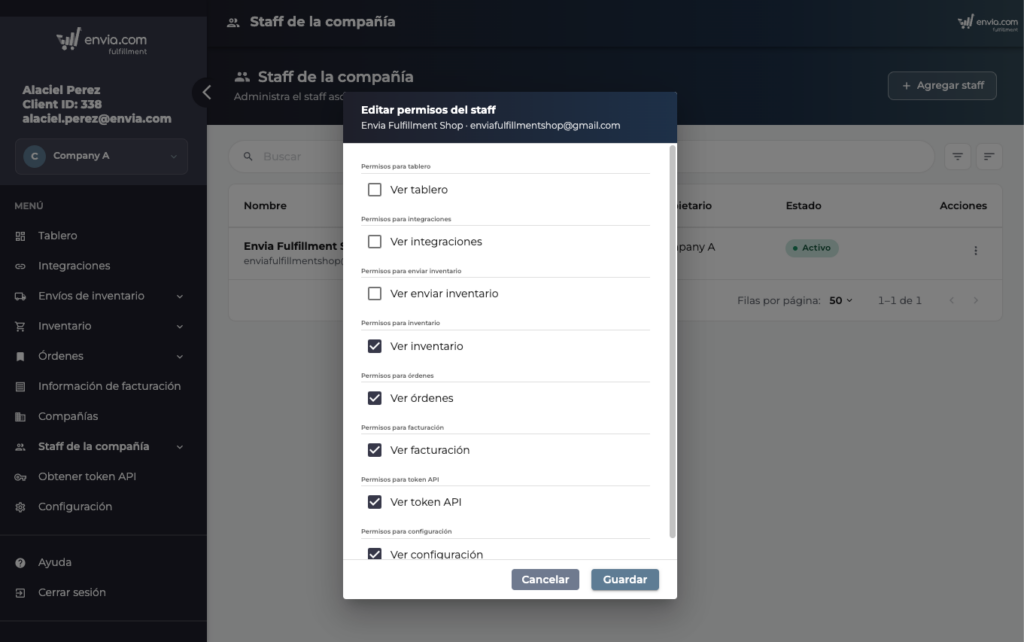
- Assign the permissions they will have (dashboard, integrations, inventory, orders, billing, settings, API Token, etc.).
- Send the invitation. The guest will receive an email with the access link.
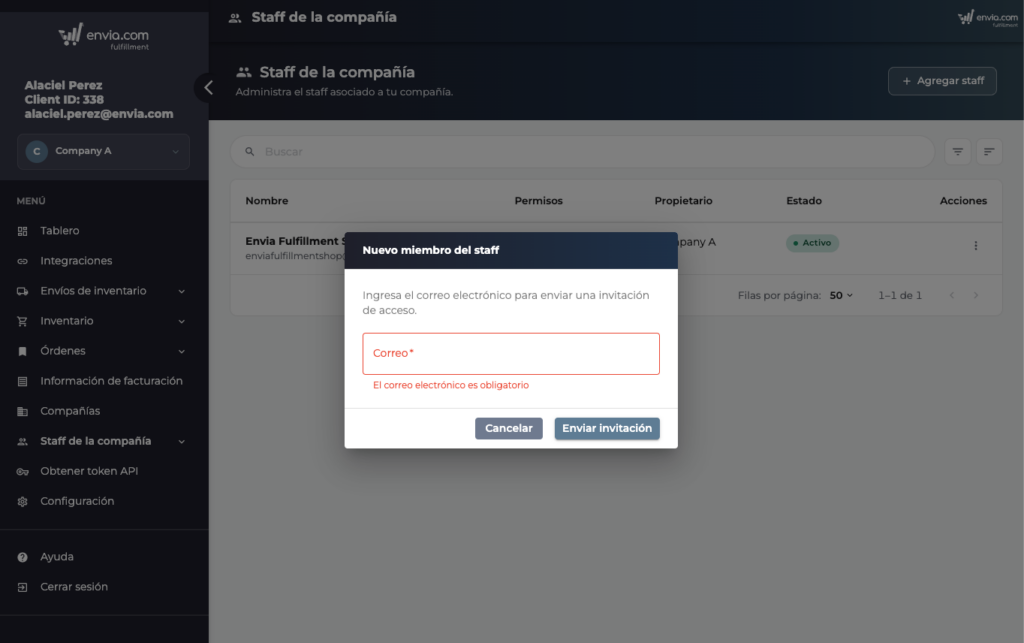
You cannot invite your own email address, nor can you duplicate pending invitations or already active members.
Review sent invitations
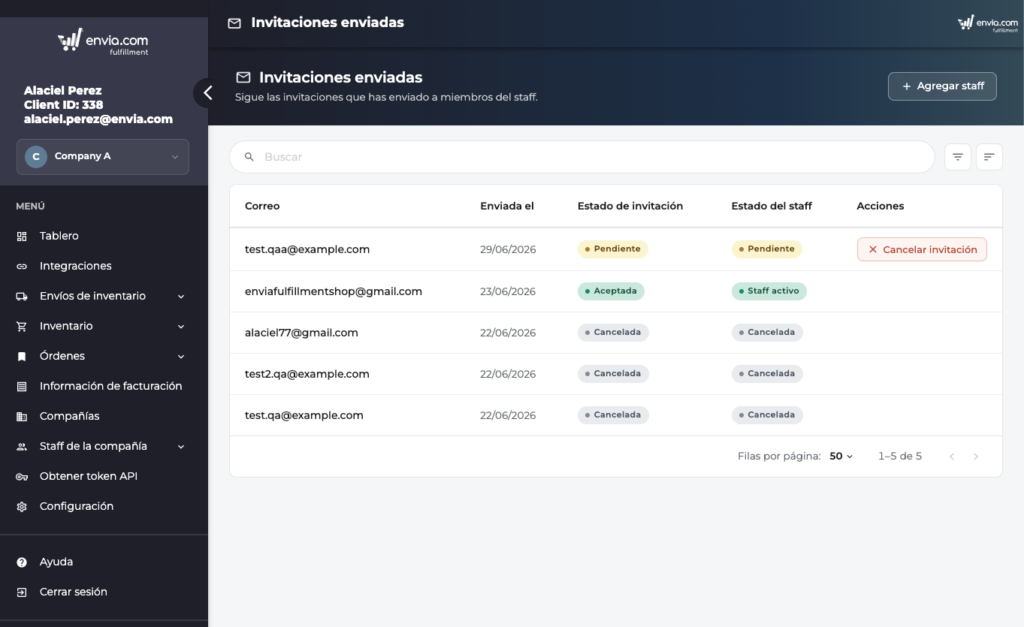
Here you can see the status of each invitation: Pending, Accepted or Canceled.
Accept an invitation as a guest
If someone invited you to their company, you will receive an email with an invitation link.
- Open the link and log in (or sign up) with the same email to which the invitation arrived.
- Upon entering Fulfillment, a modal will appear with the invitation.
- Click Accept.
The company will be available in your selector under the section Guests, with the tag Guest access.
If you already had another active company, accepting the invitation will not change your current context; you will need to select it manually from the selector. If it is your first company, Fulfillment will activate it automatically.
Permissions and visible menu
Each company can grant you different permissions. The side menu only shows the sections you have access to in the active company. The available sections are:
- Dashboard / Home
- Integrations
- Inventory
- Orders
- Billing
- Settings
- API Token
If you switch to a company where you do not have permission for the screen you are viewing, Fulfillment will automatically redirect you to the first permitted section.
First access: account without companies
If your account does not yet have any companies registered:
- The menu will only show the section Companies.
- You must create your first company to start using Fulfillment (integrations, inventory, orders, etc.).
- Go Companies.
- Click Add company.
- Enter the name and save. From there you can configure the rest of your operation.
Frequently Asked Questions
Can I have several companies of my own? Yes. You can create more than one of your own companies from Companies → Add company.
Is data mixed between companies? No. Inventory, orders, stores, billing, and settings are completely independent per company. Always verify which company is active in the side selector before operating.
How do I know if I'm working as a guest? You will see the tag Guest on the company card and the text Guest access below the company name in the side selector.
Can I edit or delete a company where I am a guest? No. You can only view and operate according to the permissions assigned to you. Editing and deletion are reserved for the company owner.
What if I'm invited with few permissions? You will only see the sections that the owner has enabled for you. The rest of the menu will not appear.
Does Fulfillment remember which company he was working for? Yes. The platform saves your active company and automatically restores it on your next login, as long as that company is still available in your account.

Did you find this resource useful?